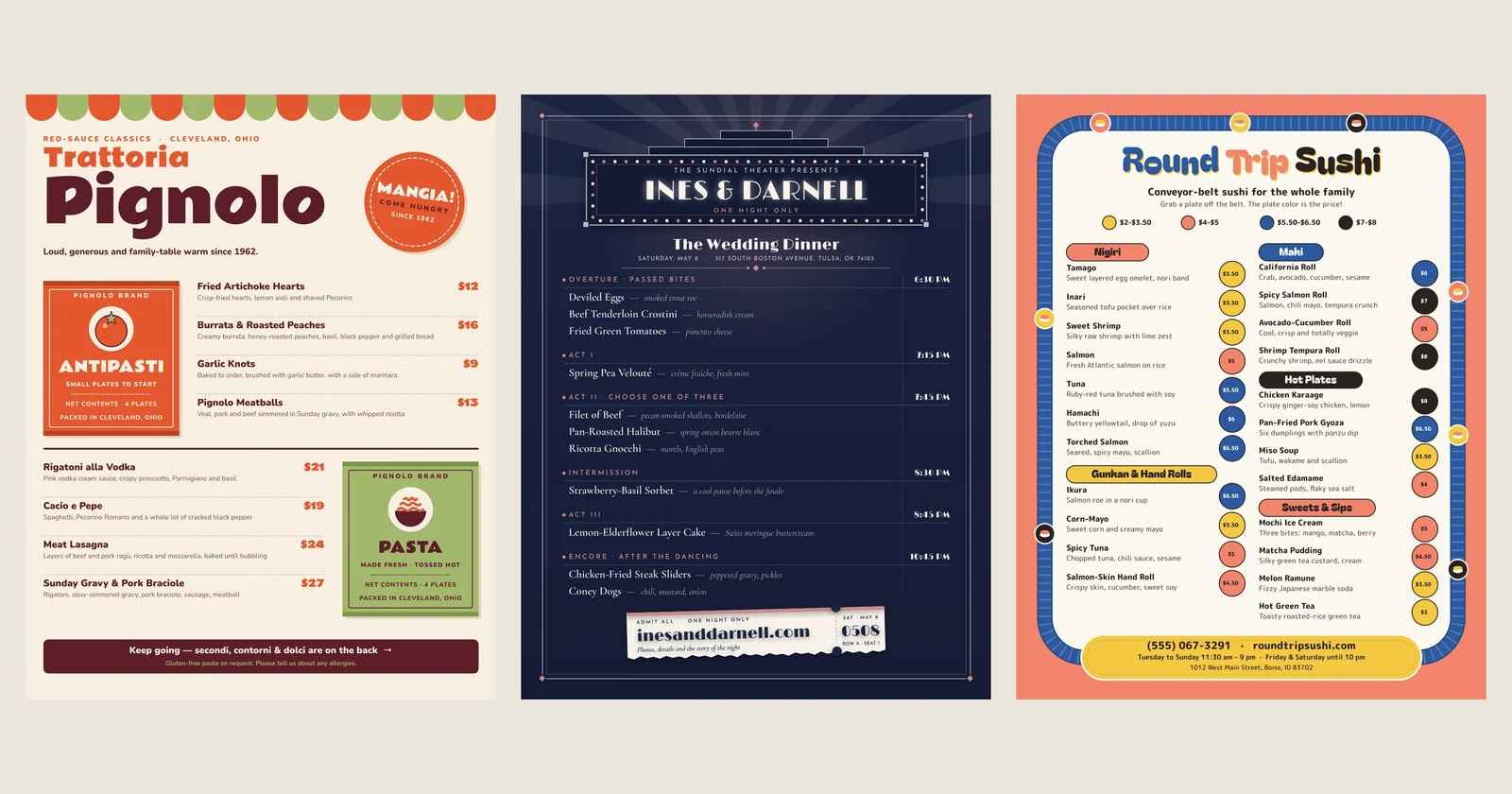
Business card size in inches, mm and pixels
The standard business card size is 3.5 × 2 in (88.9 × 50.8 mm), or 1050 × 600 px at 300 DPI. Sizes by country, bleed, safe area and file setup.

The standard business card size in the US and Canada is 3.5 × 2 inches (88.9 × 50.8 mm). At 300 DPI, the resolution printers ask for, that is 1050 × 600 pixels. With the usual 1/8 in of bleed on every side, the file you send to print is 3.75 × 2.25 in, or 1125 × 675 pixels. In the UK and most of Europe the standard is 85 × 55 mm (3.35 × 2.17 in).
| Inches | Millimeters | Pixels at 300 DPI | |
|---|---|---|---|
| Card (trim size) | 3.5 × 2 | 88.9 × 50.8 | 1050 × 600 |
| With 1/8 in bleed | 3.75 × 2.25 | 95.25 × 57.15 | 1125 × 675 |
| Safe area for text | 3.25 × 1.75 | 82.55 × 44.45 | 975 × 525 |
The rest of this guide covers the sizes used in other countries, the pixel sizes for print and screen, what bleed and the safe area are, and how to set up a card at the right size and download it ready to print.
Business card sizes by country
There is no single international standard for business cards. Each country settled on its own, and they differ by a few millimeters. These are the sizes print shops in each place use:
| Where | Millimeters | Inches | Pixels at 300 DPI |
|---|---|---|---|
| US and Canada | 88.9 × 50.8 | 3.5 × 2 | 1050 × 600 |
| UK and most of Western Europe | 85 × 55 | 3.35 × 2.17 | 1004 × 650 |
| Japan | 91 × 55 | 3.58 × 2.17 | 1075 × 650 |
| China, Hong Kong, Singapore | 90 × 54 | 3.54 × 2.13 | 1063 × 638 |
| Australia and New Zealand | 90 × 55 | 3.54 × 2.17 | 1063 × 650 |
| Scandinavia | 90 × 55 | 3.54 × 2.17 | 1063 × 650 |
| Russia, South Korea and much of Eastern Europe | 90 × 50 | 3.54 × 1.97 | 1063 × 591 |
The last row comes from Wikipedia's list of business card sizes rather than from printers, so check it with the shop before you print there.

Drawn to scale, the differences are small but real. The US card is the longest and slimmest of the common sizes: its width is 1.75 times its height, where a European card's is about 1.55 times. A design made for one doesn't fit the other without changes, so set the size before you design rather than after.
Beyond the standard rectangle, printers also sell square cards, usually about 2.5 in (64 mm) on a side, and slim or mini cards, whose size varies from one printer to the next. For those, use the size your printer gives.
Business card size in pixels
Pixels only mean something on paper once you know how many go into an inch. Print shops ask for 300 pixels per inch (often written 300 DPI), so the pixel size is the size in inches times 300.
| Card | Trim size | With bleed |
|---|---|---|
| US, horizontal (3.5 × 2 in) | 1050 × 600 px | 1125 × 675 px (1/8 in bleed) |
| US, vertical (2 × 3.5 in) | 600 × 1050 px | 675 × 1125 px |
| UK and Europe (85 × 55 mm) | 1004 × 650 px | 1075 × 720 px (3 mm bleed) |
| Japan (91 × 55 mm) | 1075 × 650 px | 1146 × 720 px (3 mm bleed) |
| Australia (90 × 55 mm) | 1063 × 650 px | 1134 × 720 px (3 mm bleed) |
For a card that only lives on a screen, such as an image you send in a message or post, DPI doesn't matter: only the pixel count does. 1050 × 600 px is sharp on any phone, so the print file works for that too.
A vertical business card is the same card turned on its side: 2 × 3.5 in, or 600 × 1050 px. It suits a tall logo, or a name that reads better stacked.
Bleed, trim and safe area
A printer doesn't print one card at a time. It prints many on a large sheet and cuts them apart, and the cut can wander slightly. Three lines keep that from showing:
- Bleed is extra background past the edge of the card, usually 1/8 in (0.125 in) on each side in the US and often 3 mm in Europe. If the cut lands a little outside the line, you see more of your background instead of a white sliver.
- Trim is the line the card is cut along: 3.5 × 2 in.
- The safe area is a margin inside the trim, at least 1/8 in, where nothing important goes: no words, no logo, no QR code. If the cut lands a little inside the line, nothing gets cut off.

On this card the background color runs out to the bleed edge, and the name, phone, email and address all sit inside the safe area. The space between the safe area and the trim is left empty on purpose.
Bleed is set by the printer, not by the country: some ask for less than 1/8 in, so download their spec sheet or template before you set up the file. A card with a plain white background and nothing near the edges doesn't need bleed at all, but adding it costs nothing.
How to make a business card at the right size in boom.design
boom.design measures pages in pixels. Its business card templates and its design agent count 300 pixels to the inch, as print shops do, and the templates are already at the print size, bleed included, so the sums above are done for you.
1. Start from a template, or describe the card
Open one of the business card templates and press Use this template. Each one opens as two pages, Business card — front and Business card — back. Select a page and the bar above it shows its size: 1125 × 675, the US card with its bleed. The vertical ones are 675 × 1125, and a few are made at the European 85 × 55 mm size, 1075 × 720 with bleed.

You can also describe the card in the chat, for example "a business card for my bakery, front and back". The design agent asks what size you need, with the common sizes to pick from, whether the card has one side or two, and whether you'll print it at a shop or at home, which decides the bleed. It then draws the card at the right size in pixels. See what an AI design agent does for how that works.
To set a size yourself, select the page and type its Width and Height in the bar, in pixels: the size in inches times 300, plus the bleed. A new page of any size comes from Custom size in the Add page menu of the Layers tool.
2. Keep the words inside the safe area
Change the name, title and details. Let background colors and pictures run all the way to the page's edge, since that edge is the bleed, and keep every word, the logo and any QR code at least 75 px (1/4 in) from the edge: 37.5 px of bleed plus 37.5 px of safe margin. The templates are drawn with that margin or more.
For your logo, open the Brand tool and click a logo in your brand kit to place it. If it's a picture with a background, Remove background in the picture's bar cuts it out.
3. Add a QR code that saves your contact
A QR code on the back lets someone save your details to their phone without typing them. Open Extras, press QR code and choose Contact. Fill in your name, organization, job title, phone, email, website and address, and the code holds them as a contact card the phone offers to save.
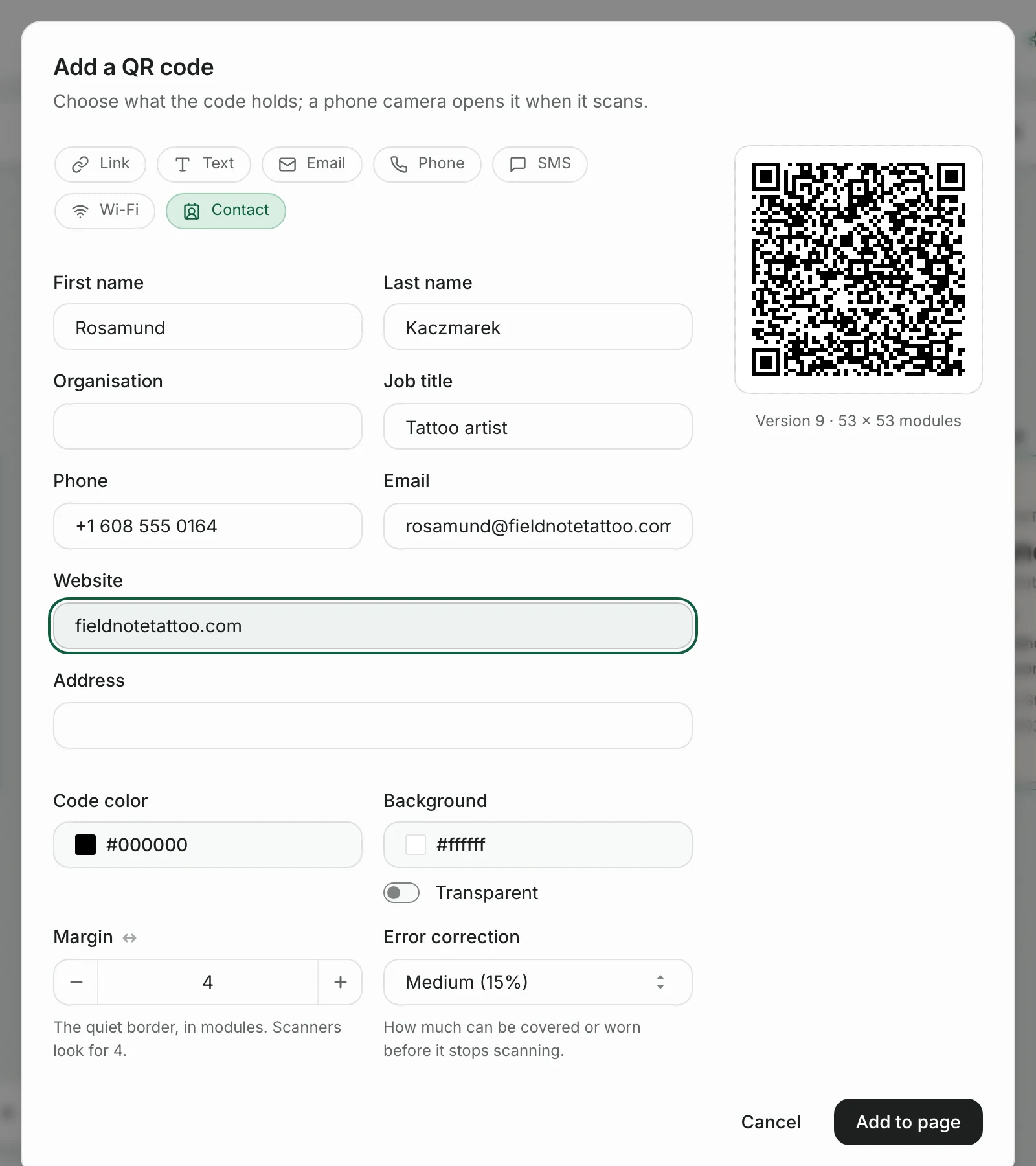
Press Add to page, then drag a corner to size it and move it into place. Make it at least 0.8 in (240 px, about 2 cm) wide: a contact card holds a lot of text, so its modules are small. Then scan it from your screen with your phone before you print. How to add a QR code to a flyer covers contrast, margins and testing in more detail.

4. Download it for print
Press Download. You have two good choices:
- PNG at 1× gives one picture per side at 1125 × 675 px. That is 300 DPI at 3.75 × 2.25 in, bleed included, which is what most print shops ask for. PNG and JPG at 1× are on every plan, the free one included.
- PDF gives one document with the front and back in order, and keeps text and shapes as vectors, so they stay sharp. PDF comes with a paid plan. Its pages are measured one point per pixel, so they open at 15.6 × 9.4 in: the right shape, but about four times as wide and as tall as the card. When you upload it, choose your printer's option to fit or scale the file to the card size with bleed (3.75 × 2.25 in), or tell the shop that's what it should be.

The download has no crop marks or trim lines: the bleed is part of the page itself. If your printer's spec asks for crop marks, check with the shop before you order.
Printing business cards at home
Card stock sold for printing at home, such as Avery's 8371 sheets, holds ten 3.5 × 2 in cards on a letter-size sheet, two across and five down, with perforations between them. The perforations sit exactly at the trim, so there's no bleed: set the page to the trim size, 1050 × 600 px, and keep the design's edges plain or white, since a home printer rarely lines a full-color background up with the perforations exactly.
Business card size questions
Is a business card 2 × 3 inches?
No. A standard US business card is 2 × 3.5 inches. "2 × 3" is a common shorthand, but a card cut to 2 × 3 in would be half an inch short.
Is a business card 3 × 5 inches?
No. 3 × 5 in is an index card, more than twice the area of a business card.
Are business cards A7 size?
No. A7 is 74 × 105 mm, almost twice the area of a business card. The A sizes are for paper; business cards have sizes of their own.
Is a business card the same size as a credit card?
Close, but no. A credit card is 85.6 × 53.98 mm, set by the ISO/IEC 7810 standard. A US business card is about 3 mm wider and 3 mm shorter. A European 85 × 55 mm card is nearer still, but not the same.
What aspect ratio is a business card?
A US card is 7:4, or 1.75:1. A European 85 × 55 mm card is about 1.55:1.
Business card templates to start from
These are recent cards from the business card templates, front and back, most at the US size with its bleed. Pick one, change the words, and download it ready to print. The minimalist cards are a good place to start for a clean, text-led card.
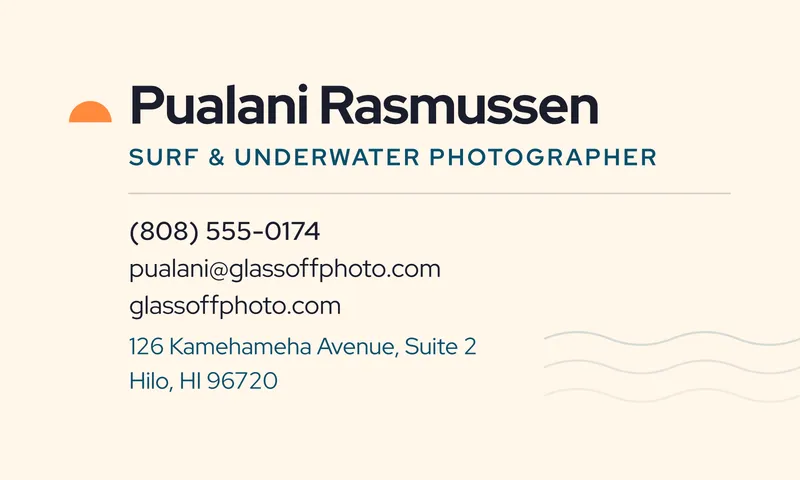

Bold Ocean Blue Surf Photographer Business Card
2 pages


Playful Prize Rosette County Fair Software Developer Business Card
2 pages


Vintage Dance Card Later-in-Life Wedding Planner Business Card
2 pages


Minimal Cold Drip Glass Flask Coffee Bar Owner Business Card
2 pages


Victorian Plaster Medallion Interior Designer Business Card
2 pages


Minimal Mist Blue Floor Line Wayfinding Consultant Business Card
2 pages


Rustic Barn Loft Dried Flower Florist Business Card
2 pages


Bold Teal Plait Braider Hair Stylist Business Card
2 pages
Or describe the card you want: