How to add a QR code to a flyer (and make sure it scans)
How to add a QR code to a flyer: make it, size it at 2 cm or more, keep it dark on light with a quiet border, and scan a test print before the batch.
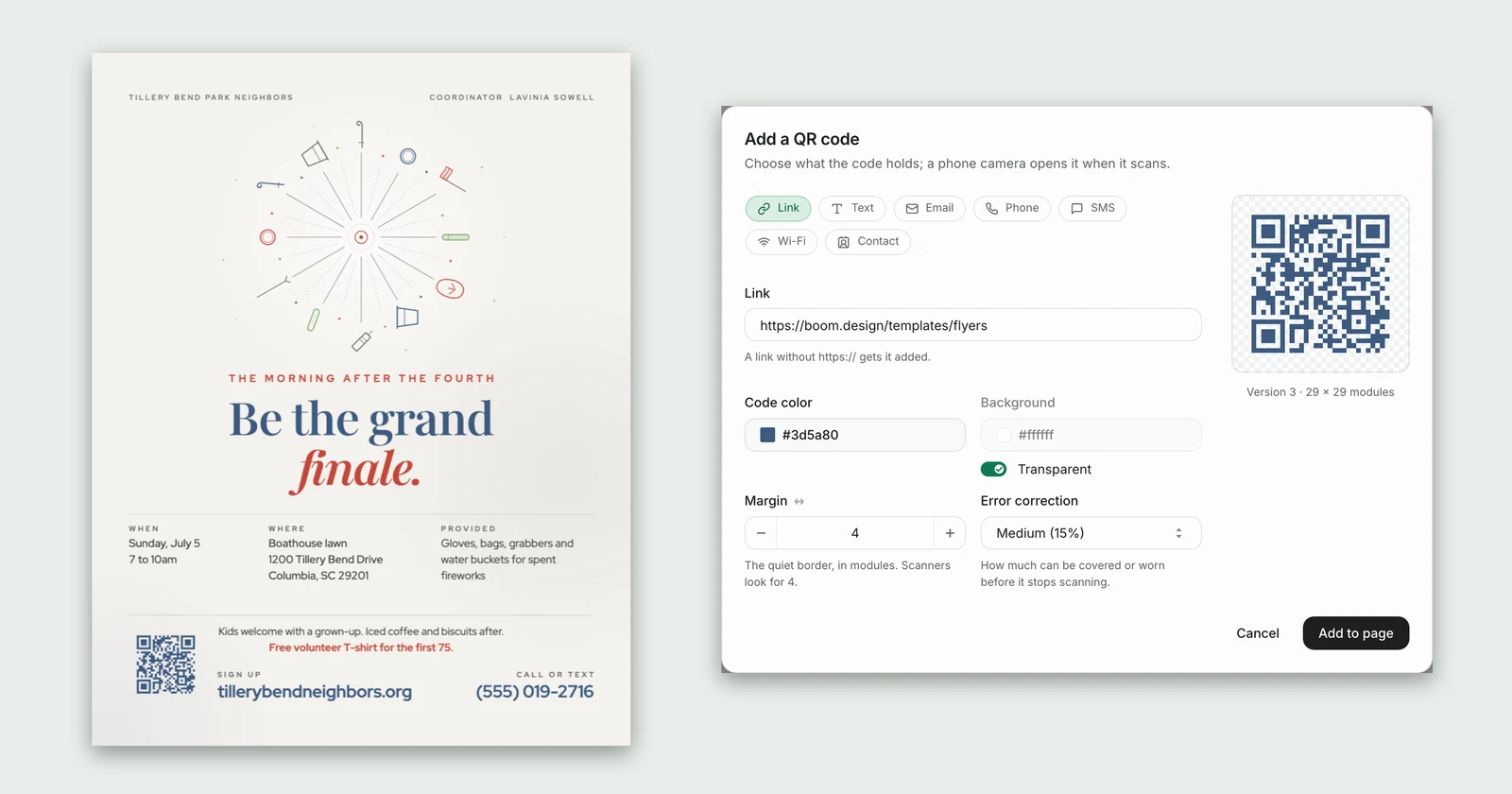
Here's how to add a QR code to a flyer: make a code that holds your link, place it at least 2 cm (0.8 in) wide with an empty border around it, keep it dark on a light background, and put a short line next to it that says what scanning does. Then print one copy and scan it with a phone before you print the rest.
In short:
- Decide what the code should open: a link, a Wi-Fi network, a contact card, a phone number.
- Make the code in your design tool, or in a QR generator if your tool has none.
- Size it for the distance people will scan from: about 1 cm for every 10 cm away.
- Keep it dark on light, with a quiet border of four modules all round.
- Add a call to action such as "Scan to sign up".
- Print a test copy and scan it with an iPhone and an Android phone.
The rest of this guide walks through those steps in boom.design, where the code is made in the editor rather than pasted in from a generator, and then covers the details that decide whether a printed code scans: size, placement, contrast, error correction and testing.
How to add a QR code to a flyer in boom.design
The example here is a park clean-up flyer, a US letter page. It already has a sign-up link printed at the bottom; the QR code goes beside it, so people can sign up without typing the address.
1. Open your flyer
Start from one of the flyer templates with Use this template, or open a flyer you already have. A blank page works too; the QR code doesn't need a design around it.
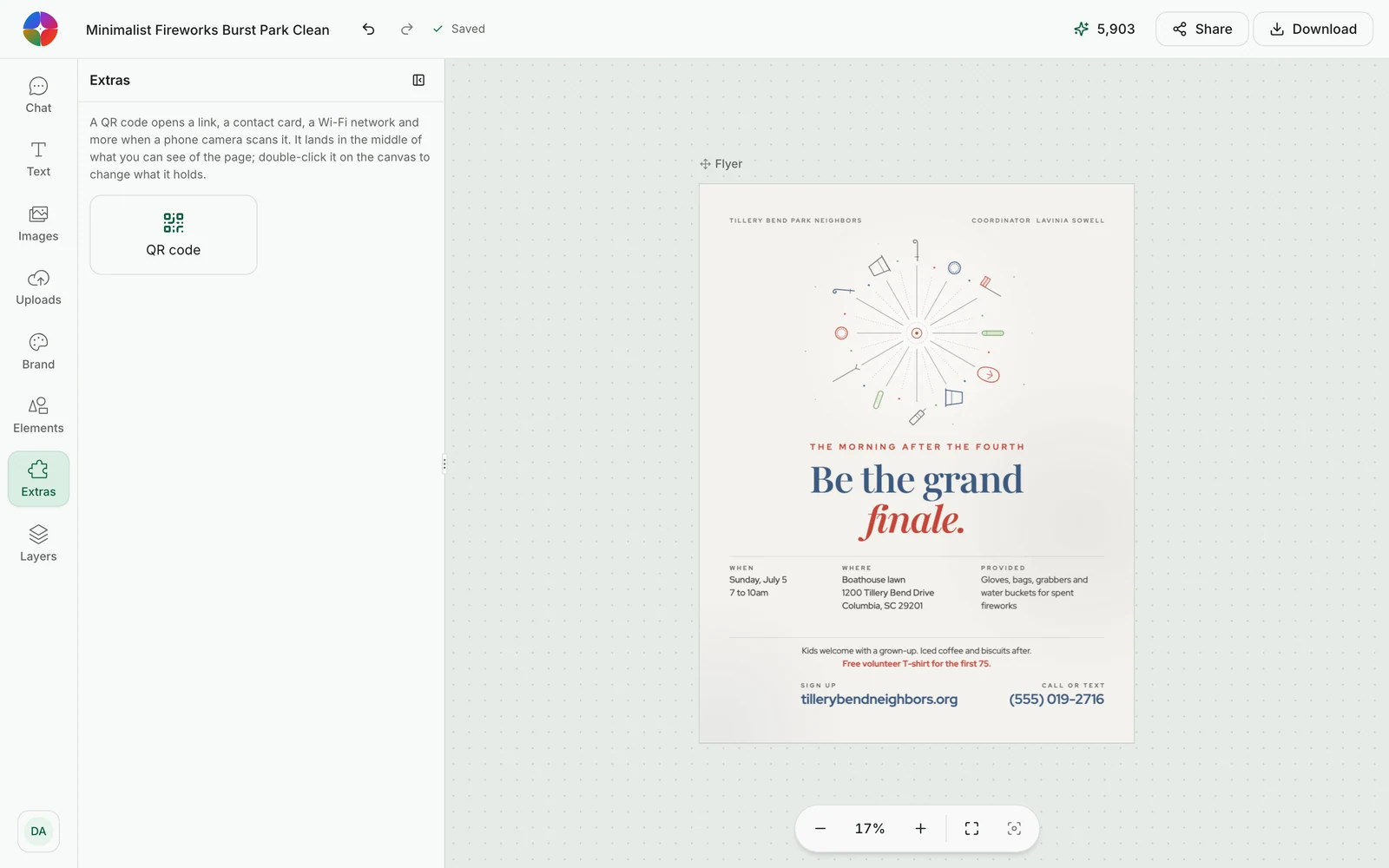
2. Open Extras and choose QR code
In the tool rail on the left, open Extras and press QR code.
3. Choose what the code holds
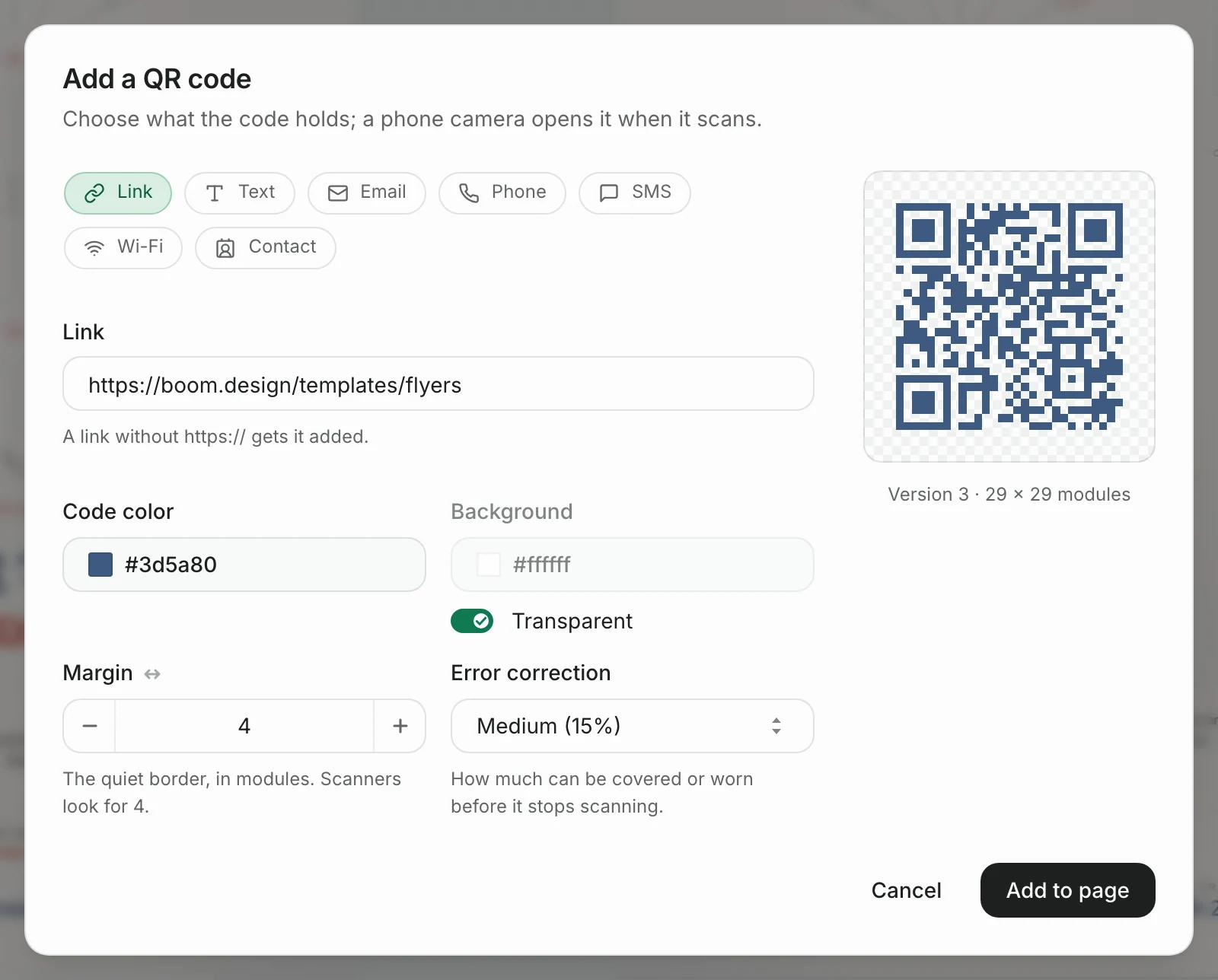
The Add a QR code dialog asks what the code holds. There are seven kinds:
- Link opens a web page: a sign-up form, a menu, a ticket page. You can leave out
https://; it gets added. - Text shows a short message on the phone.
- Email opens a new email with the address, subject and message filled in.
- Phone dials a number. Include the country code.
- SMS opens a text message to a number, with the message filled in.
- Wi-Fi joins a network: its name, its security and its password. Anyone who scans the code can read the password, so use a guest network.
- Contact saves a contact card: name, organization, job title, phone, email, website and address.
The preview on the right draws the real code as you type, and says how big it is in modules, the small squares it's made of. The link in this example, https://boom.design/templates/flyers, makes a code of 29 × 29 modules. A longer link makes more, smaller modules, which is one more reason to keep it short.
4. Match it to the flyer
Under the content are four settings:
- Code color is the color of the modules. Any dark color works. Here it's the flyer's navy,
#3d5a80. - Background is the color of the light squares and the border. Turn on Transparent to let the flyer's own background show through, but only when that background is plain and light.
- Margin is the quiet border around the code, in modules. Leave it at 4; scanners look for it.
- Error correction is how much of the code can be covered or worn before it stops scanning. Medium (15%) is the default and suits a flyer. More on this below.
Press Add to page.
5. Size it and put it in place
The code lands in the middle of what you can see of the page, selected, at about a third of the page's width. On a letter flyer that's around 2.6 inches across, bigger than most flyers need.

Drag a corner to resize it; a QR code only resizes from its corners and stays square. Then drag it where it belongs. Here it's 1.2 inches (3 cm) wide, at the bottom left beside the sign-up details, which were moved over to make room. The sign-up label next to it doubles as the call to action.
While the code is selected, the bar above the page holds its settings. The first button shows what the code holds; press it, or double-click the code, to change the link. The others change its colors, its margin and its error correction.

You can also ask the design agent in the chat to add one, for example "add a QR code for our sign-up page, bottom left". It asks for the link rather than inventing one.
6. Download it for print
Press Download. For a print shop, choose PDF: one document at print quality. The QR code stays vector in it, so it prints with sharp edges at any size. PDF and SVG come with a paid plan; the free plan downloads PNG and JPG at 1×. For this flyer, a 1× PNG is 2625 × 3375 pixels, which is 300 dpi for a letter page with an eighth of an inch to trim on each side, so it prints well too.

What size should a QR code be on a flyer?
At least 2 × 2 cm (0.8 × 0.8 in) for a flyer someone holds in their hand. That's the usual floor in vendors' guides, such as Bitly's. They also give a rule for anything scanned from further away: the code should be about a tenth of the distance it's scanned from.
| Where the flyer is | Scanned from about | Code at least |
|---|---|---|
| In someone's hand | 30 cm (1 ft) | 3 cm (1.2 in) |
| On a counter or a table | 50 cm (1.5 ft) | 5 cm (2 in) |
| On a bulletin board | 1 m (3 ft) | 10 cm (4 in) |
| A poster across a room | 3 m (10 ft) | 30 cm (12 in) |
Two things push the size up. A long link makes more modules, so each one is smaller at the same width; keep the link short. And print that isn't crisp, such as a home inkjet on plain paper, blurs the smallest modules. When in doubt, go bigger: a code that's too large costs a little space, and one that's too small doesn't work at all.
Where to put the QR code
- Near the details. People look for the code after they've read what the event or offer is, so it belongs at the end of the reading path, usually a bottom corner, next to the date, place or link it stands for.
- Inside the margins. Keep it well away from the trimmed edge, and off any fold on a folded flyer.
- On a plain area. Over a photo, a pattern or a gradient, keep the code's own light background rather than making it transparent, so the scanner can find the code's three corner squares.
- With a reason to scan. A few words beside it, such as "Scan to sign up", "Scan for the menu" or "Scan for tickets", tell people what they'll get. A bare code gives people no reason to reach for their phone.
Keep it scannable: contrast, quiet zone and error correction
Contrast. Use dark modules on a light background: black, navy or a dark brand color on white or cream. Pale colors on white, or two mid-tones, may not scan. Light modules on a dark background are a gamble: some phones read them and some scanner apps don't. If your design needs an inverted code, test it on several phones first.
Quiet zone. The empty border is part of the code. Denso Wave, which invented the QR code, asks for a margin four modules wide on every side. Text, lines or a photo inside that border can stop a scan, even when the code itself is untouched.
Error correction. A QR code repeats some of its data so it can still be read when part of it is damaged. There are four levels, and each one restores roughly this share of the code:
| Level | Restores about | Use it for |
|---|---|---|
| Low | 7% | Clean, close-up use with a lot of data |
| Medium | 15% | Most flyers: the usual choice |
| Quartile | 25% | Flyers handled a lot, posted outdoors or folded |
| High | 30% | A code with a logo or picture over its middle |
The trade-off: a higher level stores the same link in more modules, so at the same size each module is smaller. Pick High only when something covers part of the code, and make the code a little bigger when you do.
Test it before you print
- Scan it on screen with your phone's camera. On an iPhone the Camera app reads QR codes on its own; most Android phones' cameras do too, or use Google Lens.
- Print one copy at actual size, at 100%, not "fit to page", on the paper you'll use.
- Scan the printout from the distance people will really be at, with an iPhone and an Android phone, and once in dim light.
- Check where it lands. The page should load quickly on a phone and be the page you meant. A sign-up form that's hard to use on a phone loses the people the flyer won.
Do QR codes on flyers expire?
A static QR code never expires: the link is stored in the pattern itself, so it works as long as the page it points to does. The codes boom.design makes are static. That also means a printed code can't be changed, so point it at a page you control and can update, such as your sign-up page, not at a file you might delete.
Dynamic codes, which some QR generators make, hold a short link to the generator's own server, which then sends people on to your page. They let you change the destination and count scans, but they work only as long as that service keeps redirecting them. Some stop when a subscription or free trial ends. If you need to count scans from a static code, add a tracking tag to the link, such as ?utm_source=flyer, and your site's analytics will show those visits, at the cost of a slightly longer link.
Flyer templates to start from
These are recent community flyers from the flyer templates. Each one opens in the editor, ready for its QR code. For more on how the editor and its design agent work, see what an AI design agent does.

Retro Western Shirt Embroidery Line Dancing Class Flyer

Aloha Shirt Print Hawaiian Farmers Market Flyer

Minimalist Hockey Faceoff Circle Yoga Class Flyer

Photo-Led Jeep Club Highway Clean-Up Flyer

Elegant Engraved Cranberry Harvest Charity Run Flyer

Photo-Led School Bus Stop Arm School District Hiring Fair Flyer
Or describe the flyer you need and add the code once it's drawn: